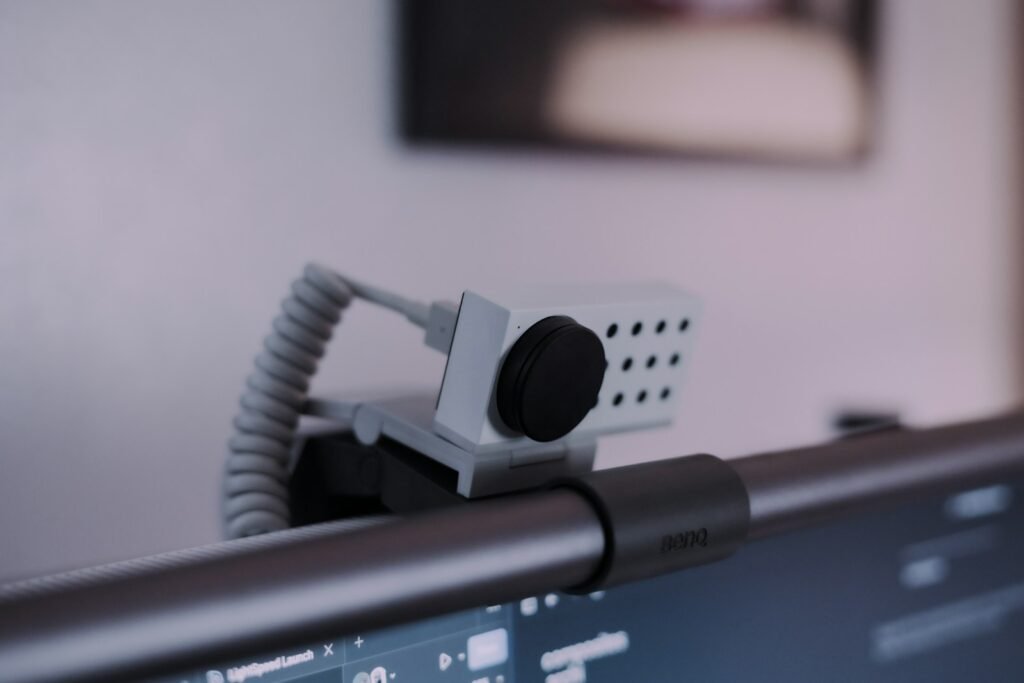
Quick answer: The best webcam for work from home for most people is a solid 1080p model with autofocus, a privacy shutter and built-in mics, like the Logitech C920s Pro HD. If you want sharper video and better low-light results, step up to the Logitech MX Brio, and if you need adjustable framing on a budget, the Anker PowerConf C200 lets you switch between three fields of view.
As an Amazon Associate, we earn from qualifying purchases. Some links on this page are affiliate links. We have not tested these products ourselves; this guide is based on manufacturer specs, listing details and buyer reviews as of November 2026. Prices and availability change, so check the listing before you buy.
How to choose a webcam for working from home
Most video apps, including Zoom, Teams and Google Meet, send video at 1080p or lower, so a 4K webcam is not a must. What makes the biggest difference on calls is how the camera handles your lighting, how well it frames you and whether people can hear you clearly. Use this checklist.
- Resolution and frame rate. 1080p at 30fps is enough for most meetings. 1080p at 60fps looks smoother when you move a lot. 4K helps if you record videos, crop or zoom digitally.
- Low-light handling. Home offices are often dim or backlit by a window. Larger sensors, HDR and automatic light correction keep your face visible.
- Field of view. Around 65° to 80° frames one person at a desk. Wider angles show more of the room, which suits two people but also shows clutter. Adjustable field of view gives you both.
- Autofocus vs. fixed focus. Autofocus helps when you hold up papers or lean in. Fixed focus is fine if you sit at the same distance all day.
- Microphones. Built-in dual mics with noise reduction beat most laptop mics. A headset still gives the cleanest sound in a noisy home.
- Privacy. A physical shutter or a camera that points away when not in use gives peace of mind.
- Connection and mounting. Check that the cable fits your computer (USB-A or USB-C) and that the clip suits your monitor or laptop. A tripod thread is handy for odd setups.
- Work software. If your company uses Teams or Zoom, look for a model that lists compatibility, and check whether settings require a companion app.
Best work-from-home webcams compared
| Pick | Best for | Key features | What to check |
|---|---|---|---|
| Logitech C920s Pro HD | Most people | 1080p/30fps, 78° view, autofocus, dual mics, privacy shutter | Basic in very low light |
| Logitech Brio 100 | Tight budgets | 1080p, built-in mic, RightLight, sliding shutter | Simpler mic and optics |
| Anker PowerConf C200 | Adjustable framing | 2K, 65°/78°/95° view, dual AI noise-cancelling mics, privacy cover | Field of view set in Anker’s app |
| Logitech MX Brio | Best image quality | 4K/30fps or 1080p/60fps, large sensor, beamforming mics, USB-C | Costs more; 4K needs bandwidth |
| Elgato Facecam MK.2 | Smooth 60fps video | 1080p/60fps uncompressed over USB 3.0, 84° view, USB-C | Fixed focus; plan on a headset or mic |
| Insta360 Link 2 | Presenters who move | 4K/30fps, 1/2″ sensor, 2-axis gimbal, AI tracking, gesture control | Higher price; app for full features |
The 6 best webcams for working from home
1. Logitech C920s Pro HD: best for most people
The C920s has been a home-office standard for years because it covers the basics well. Logitech lists 1080p at 30fps, a fixed 78° diagonal field of view, autofocus, two mics (one on each side of the lens) and a flip-down privacy shutter. It frames one person at a desk without showing the whole room.
Best for: daily Zoom and Teams calls with no fuss. Consider: add a small desk light if your room is dim.
2. Logitech Brio 100: best budget webcam
The Brio 100 is a simple 1080p upgrade over most built-in laptop cameras. Logitech says its RightLight feature brightens the image by up to 50% compared with its older webcams, and it adds auto light balance, a built-in mic and an integrated sliding shutter. It lists support for Windows, macOS and ChromeOS, plus Teams, Meet and Zoom.
Best for: a low-cost, plug-in upgrade for a laptop or second desk. Consider: it has fewer extras than the C920s.
3. Anker PowerConf C200: best for adjustable framing
The C200 records in 2K and lets you pick a 65°, 78° or 95° field of view in the AnkerWork app. Use the narrow view to hide a messy room and the wide one when a second person joins. It has dual mics with AI noise reduction, an adaptive light sensor and a sliding privacy cover.
Best for: shared spaces and people who switch between solo and two-person calls. Consider: you need Anker’s software to change the field of view.
4. Logitech MX Brio: best image quality for professionals
The MX Brio records 4K at 30fps or 1080p at 60fps, and Logitech says it uses its largest webcam sensor yet, with larger pixels for better low-light results. It adds dual beamforming mics with AI noise suppression, a privacy shutter you rotate to cover the lens, a detachable USB-C cable and a Show Mode for sharing notes on your desk. Fine image controls live in Logi Options+.
Best for: client-facing roles, recorded videos and dim rooms. Consider: most meeting apps will not send full 4K, so you are paying for sensor quality more than resolution.
5. Elgato Facecam MK.2: best for smooth 60fps video
Elgato built the Facecam MK.2 for crisp, smooth video. Its spec sheet lists uncompressed 1080p at 60fps over USB 3.0, an 84° field of view and a fixed-focus lens tuned for 30 to 120 cm (about 1 to 4 feet), with a USB-C port on the camera. Elgato’s spec sheet does not list a microphone, so plan to use a headset or desk mic.
Best for: people who already own a good mic and want sharp, fluid video. Consider: on a USB 2.0 port the video is compressed.
6. Insta360 Link 2: best for presenters who move around
The Link 2 sits on a small 2-axis gimbal and uses AI tracking to follow you as you stand up, walk to a whiteboard or lean back. Insta360 lists 4K at 30fps from a 1/2-inch sensor with HDR, autofocus from 10 cm, up to 4x digital zoom, AI noise cancelling and a privacy mode that tips the lens down. Hand gestures can start tracking or zoom. The cheaper Link 2C drops the gimbal for software auto-framing.
Best for: teachers, trainers and anyone who presents on their feet. Consider: it costs more and the best features need Insta360’s app.
Tips for looking better on video calls
- Face the light. Sit facing a window or lamp, not with a window behind you. Light matters more than resolution.
- Raise the camera to eye level. A laptop stand or monitor mount avoids the unflattering look-up angle.
- Pick the camera in your app. Zoom and Teams often default to the built-in camera and mic. Select the new webcam in settings.
- Plug in directly. Use a port on your computer instead of an unpowered hub to avoid dropouts, especially for 4K or 60fps.
- Check your internet. A great webcam still looks blocky on a weak connection. Wired Ethernet helps.
Frequently asked questions
Is 1080p good enough for work video calls?
Yes. Most meeting apps send 1080p or less, so a good 1080p webcam with decent low-light handling looks great to coworkers. Pay for 4K only if you record videos, crop the frame or want the larger sensor that often comes with it.
Do I need a webcam if my laptop has a camera?
Not always, but many laptop cameras are small and struggle in dim rooms. An external webcam also lets you use a monitor at eye level with the laptop closed or off to the side.
Are webcam microphones good enough?
Dual mics with noise reduction are fine for a quiet home office. If you share space with kids, pets or a loud street, a headset or a dedicated USB mic will sound clearer to others.
What field of view is best for a home office?
For one person at a desk, about 65° to 80° works well and keeps the background tidy. Choose 90° or wider only if two people often share the frame.
Do webcams work with both Mac and Windows?
Most USB webcams work on both without drivers, but extra settings may need the maker’s app. Check the listing for your operating system and for USB-A or USB-C, and keep an adapter handy for newer laptops.
More guides
- Best Office Chair for Home Office: How to Choose an Ergonomic Desk Chair
- Best Wireless Earbuds for iPhone and Android
- How to Choose a Computer Monitor
- Office Gift Ideas for Coworkers